Best practice advise from Microsoft is to have a break-glass account, which should be excluded from a lot of your conditional access policies. This account should hopefully never need to be used. That’s why I’m adding alerts if the break-glass account is being used. With this setup, you will receive a email notification if anyone uses this account to sign-in.
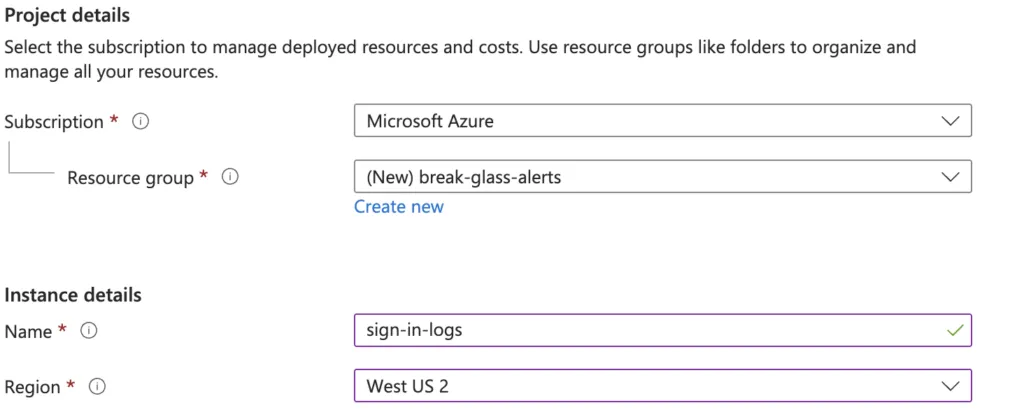
Start by creating a new Log Analytics workspace in Azure.
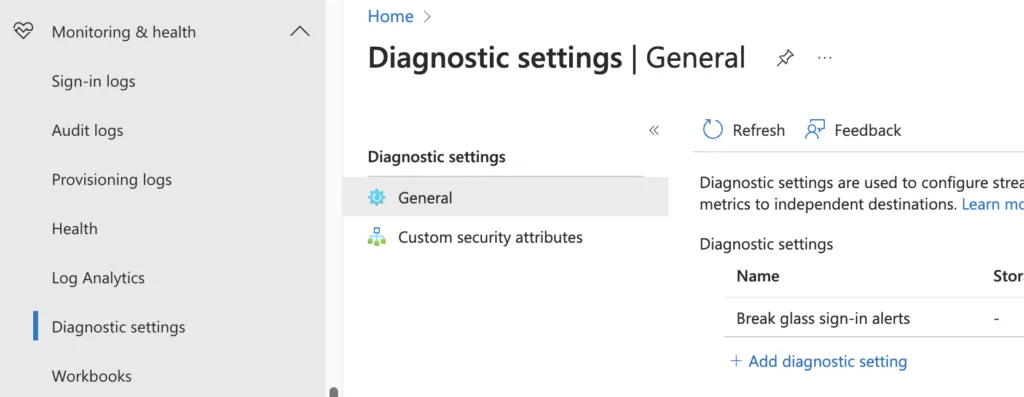
Go to Entra ID -> Monitoring & health -> Diagnostic settings -> Add diagnostic setting (here)
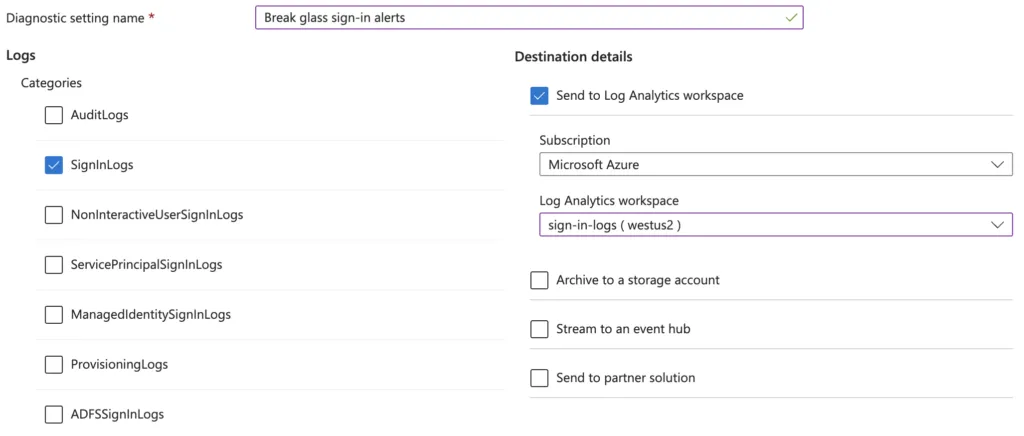
Select the ‘SignInLogs’ category, and ‘Send to Log Analytics workspace’ as the destination. Select the Log Analytics workspace you created earlier, and save.
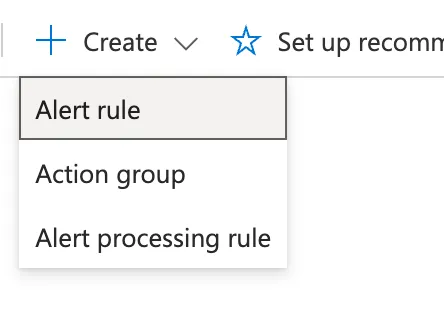
Go back to the Log Analytics workspace in Azure. Navigate to Monitoring -> Alerts -> Create -> Alert rule
Signal name = Custom log search
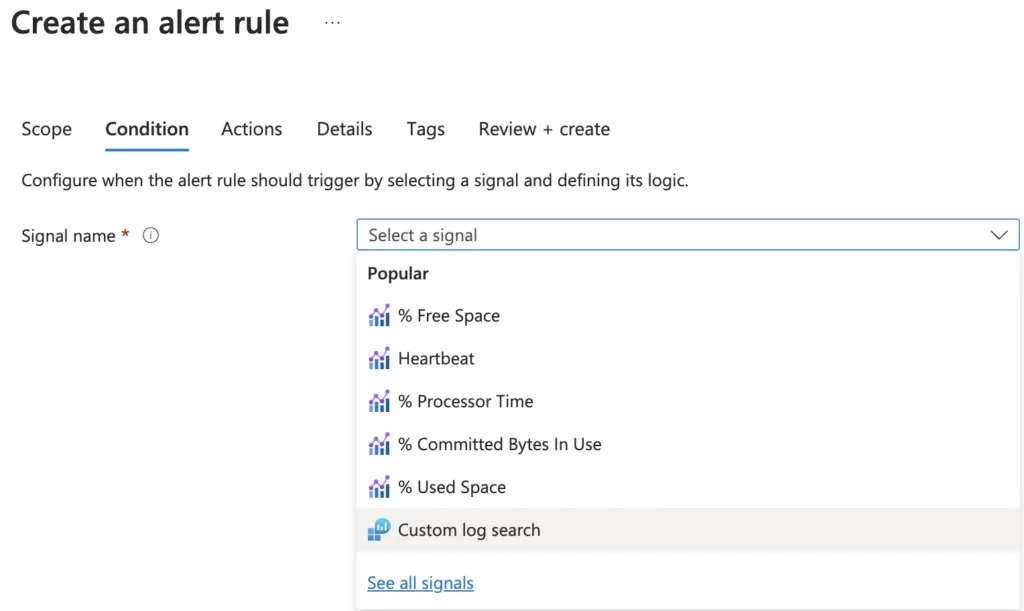
Paste the following KQL in the Search query box, update the email to match your break glass account:
SigninLogs
| project UserPrincipalName
| where UserPrincipalName == "[email protected]"
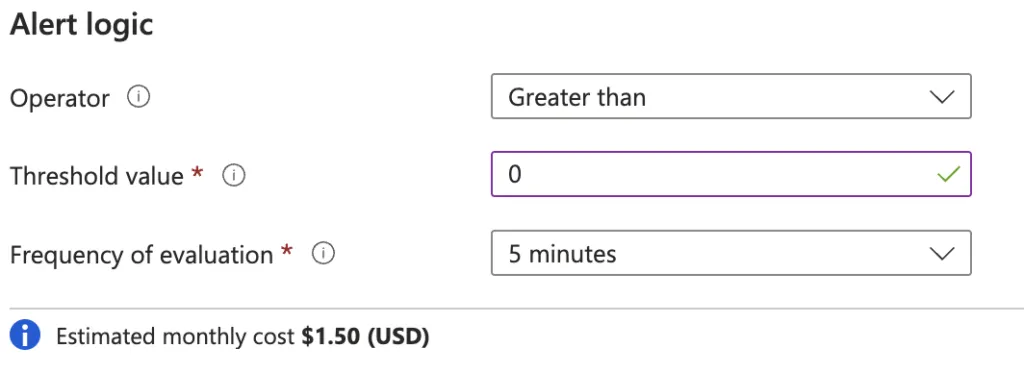
Scroll down to Alert logic. The other settings above can be left as default.
Operator = Greater than
Threshold value = 0
Frequency of evaluation = 5 minutes
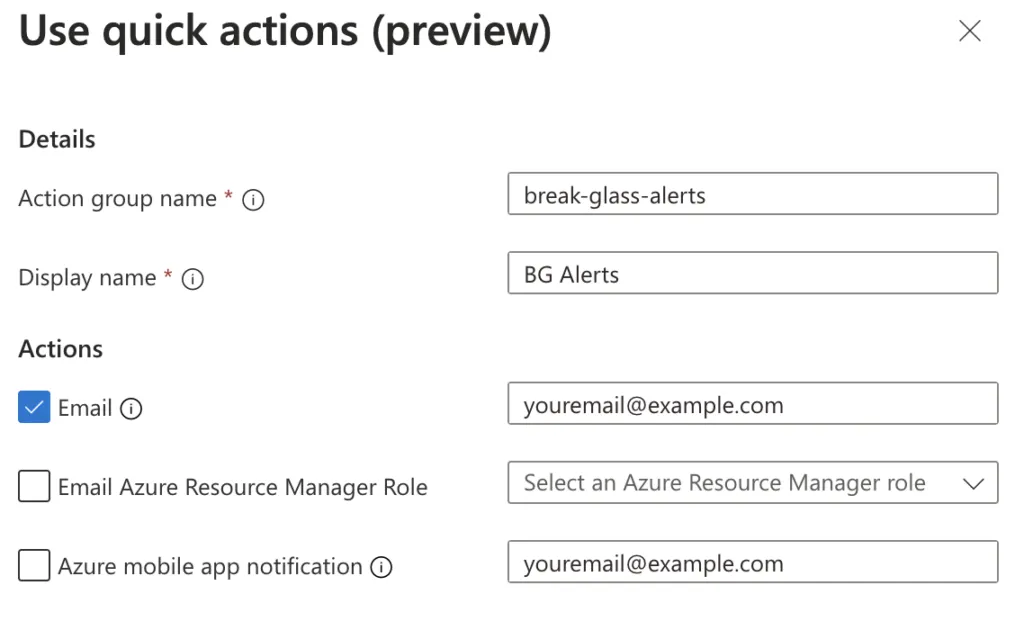
Select Next to go to the Actions tab. Either use quick options like I am, or create a new action group manually. If you already have a action group configured, you can select that now.
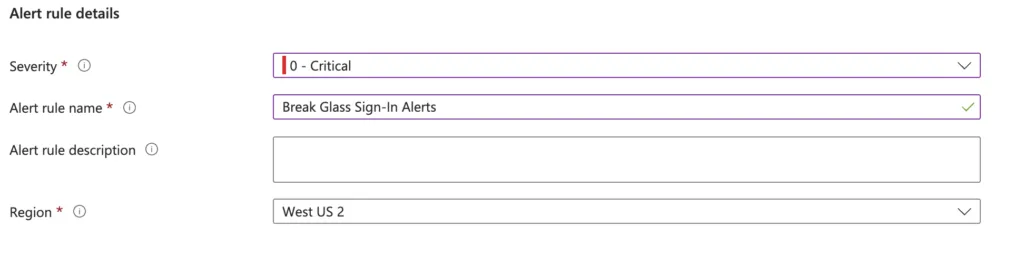
Click Next to go to Details. Specify Severity and the Alert rule name.
Click Review + create, and then Create to finish the setup.
Remember to test the alerts!